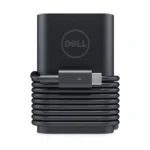
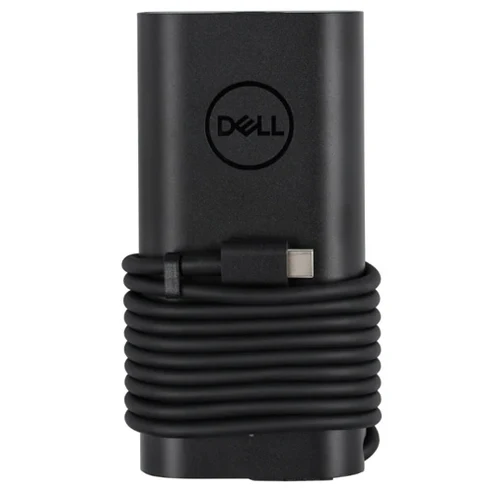
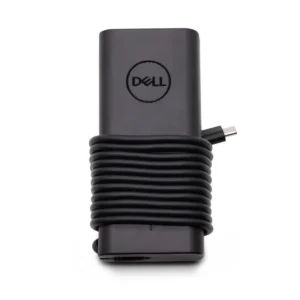
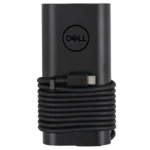
DELL Original 100W USB Type C Pin Laptop Charger Adapter
Original price was: ₹10,394.00.₹3,000.00Current price is: ₹3,000.00. Inc. GST
- Pan India Free Shipping
- Easy 7-Days Return Policy
- Original Brand Warranty
- 100% Genuine Product
Product Description
The Perfect Partner for Your Laptop on the Go
Always on the go? Stop lugging your AC adapter back and forth between home and office. Get a second AC adapter for your laptop or Tablet and keep one in the office and one for home or travel.
Genuine Dell-branded parts undergo rigorous testing by qualified engineers to ensure compatibility and reliability in your Dell system.
Dell’s sustaining qualification process allows for testing and certification of the newest technology on your Dell system.
Genuine Dell-branded parts mean that you will not need to worry about voiding your system’s hardware warranty.
Non-Dell parts are not covered under warranty and may void your Dell laptop’s warranty.
Dell’s Limited One Year Warranty guarantees that if Genuine Dell-branded parts should fail, it will be replaced.
Troubleshooting Adapter Issues
The adapter cable and power cables may get frayed or cut, and wires may become exposed at either end of the cables. This may be due to the way the cable is wrapped around the adapter, or if the cable is subject to undue stress. If the damage is severe enough to expose wires, you should discontinue using the adapter. To check the adapter, cables, and adapter port on the laptop for any damages:
- Unplug the adapter from the wall outlet.
- Unplug the adapter from the PC.
- Check the adapter and cables (including the power cable) for signs of physical damage or overheating.
- Check if the pin inside the plug or adapter port is bent, broken, or damaged.
- Unplug the adapter from the wall outlet.
- Connect another device on the wall outlet to verify if the wall outlet is working correctly.
- Try a known-good wall outlet.
- Plug the adapter directly to the wall outlet.
Bypass any power regulators like surge protectors, UPS (uninterruptible power supply), power splitters, etc.
- Unplug the adapter from the wall outlet.
- Disconnect any external peripherals that are connected to the PC.
- Remove the battery. Refer to the User Manual of the PC for instructions on how to remove the battery.
If the Dell laptop PC has a non-removable battery, skip this step. - Press and hold the Power button for 30 seconds to drain a residual power from the PC.
- Connect the battery.
- Plug the adapter to the PC.
- Turn on the PC.
USB-C is a popular cross-platform standard for charging, connecting peripherals and transferring data. Select ultra-thin Dell PCs use USB-C power port to charge the PCs. It is essential to ensure that the USB-C charger is connected to the correct USB-C port that allows charging and data transfer, especially when the PC comes with more than one USB-C port.
- Unplug the adapter from the wall outlet.
- Unplug the adapter from the PC.
- Disconnect the power cable from the adapter.
- Connect the power cable firmly to the adapter.
Using an adapter that has a lower wattage may cause the following issues:
- An error message like “The AC adapter type cannot be determined. This will prevent optimal system performance” or “Unknown or incorrect AC adapter detected” may appear.
- Your system may reduce the processor (CPU) speed to save power.
- The laptop battery might not charge or charge slowly.
- The AC adapter might heat up.
- Check the LED indicator on the adapter.
Dell laptop PCs may use either a 60W, 65W, 90W, 130W, 180W, or 240W adapter. For optimal performance, use the adapter that came with the Dell laptop PC. Adapter’s wattage information is printed on the label on the bottom of the adapter.
To verify if the PC is recognizing the adapter correctly:
- Restart the PC.
- When the Dell logo appears, tap F2 key until the message Entering Setup appears.
- Verify the Adapter Type in the BIOS options.
If Adapter Type is None – Ensure to connect the adapter to the PC.
If Adapter Type is Unknown – Follow troubleshooting steps to resolve adapter issues.
Running a hardware diagnostic test can help you identify what the issue may be and provide you troubleshooting steps to help resolve the issue. Dell offers both built-in and online diagnostics. The Dell ePSA hardware diagnostic test checks if the adapter is recognized correctly.
To run the Dell ePSA built-in hardware diagnostics:
- Turn on the PC and tap F12 key at the Dell logo screen.
- Choose Diagnostics from the menu.
The BIOS is firmware that is embedded onto the System Board of your computer. Updating the BIOS to the latest version may help the PC recognize the adapter. Updating the BIOS to the latest version requires the laptop PC to be powered by the adapter and battery.
Technical Specifications
| Product Type | Laptop Adapter |
| Part Number | 450-BBNS |
| Pin Type | USB Type-C |
| Power Capacity | 100 Watt |
| Compatible Part Numbers | JC22F PJ25C 450-BBNS |
| Compatible Model Numbers | Dell Pro Rugged 13 RA13250 Dell Pro Rugged 14 RB14250 Inspiron 14 5430 Inspiron 14 5440 Inspiron 14 5445 Inspiron 14 7430 Inspiron 14 7440 Inspiron 14 7440 Inspiron 14 7445 Inspiron 16 5630 Inspiron 16 5640 Inspiron 16 5645 Inspiron 16 7630 Inspiron 16 7640 Inspiron 16 7640 Latitude 3450 Latitude 3550 Latitude 5340 Latitude 5350 Latitude 5440 Latitude 5450 Latitude 5455 Latitude 5540 Latitude 5550 Latitude 7340 Latitude 7350 Latitude 7440 Latitude 7450 Latitude 7455 Latitude 7640 Latitude 7650 Latitude 9440 Latitude 9450 Precision 3480 Precision 3490 Precision 3580 Precision 3581 Precision 3590 Precision 3591 Precision 5480 Precision 5490 Precision 5680 Precision 5690 XPS 14 9440 |
| Power Cable Included | Yes |
| Warranty | 1 Year on Adapter by DELL |
| Package Contents | Dell Original 100W USB Type-C Laptop Adapter |
Reviews
There are no reviews yet.